
Learn to add /app skills & build Apps in Copilot Cowork
In this blog post – you will learn to add /app skills in Copilot Cowork first, then after that I will show you how we can make Apps with the newly added App skills in Cowork.
Add /app skills in Microsoft 365 Copilot Cowork
Step 1: Navigate to https://admin.cloud.microsoft/
Step 2: Sign In to your account
Step 3: Look for Copilot in navigation section (Copilot -> Settings -> View All – Search: Copilot Frontier)
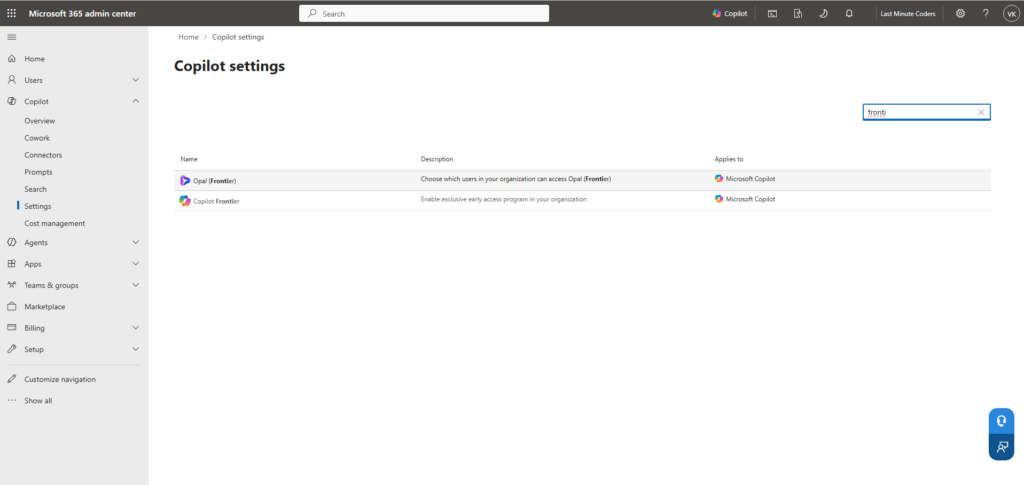
Step 4: Click on Copilot Frontier -> Select Specific Users or Groups and search for user or group and select it.
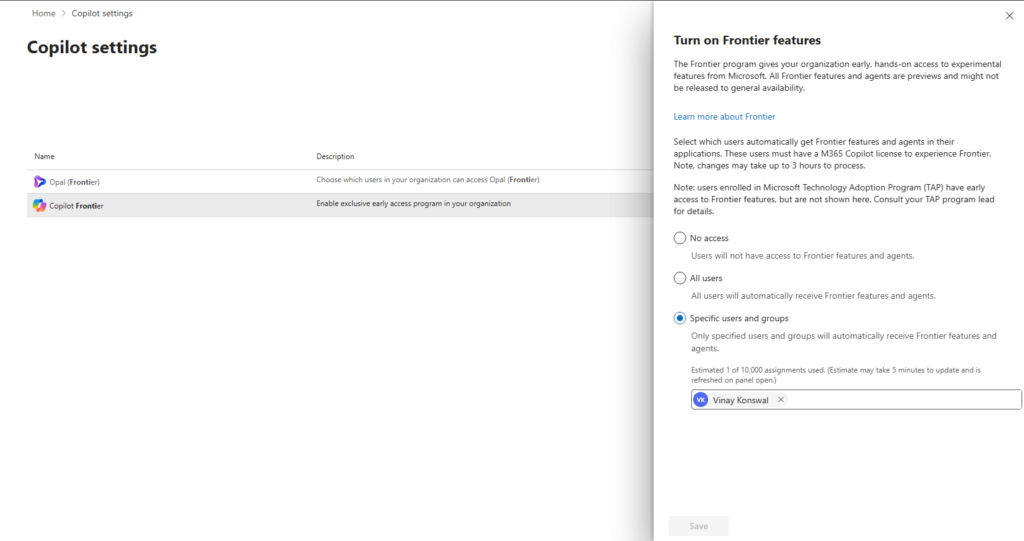
NOTE: Wait for 3 hours for it to get activated
After 3 hour head to M365 Copilot and switch to cowork (https://copilot.cloud.microsoft/)
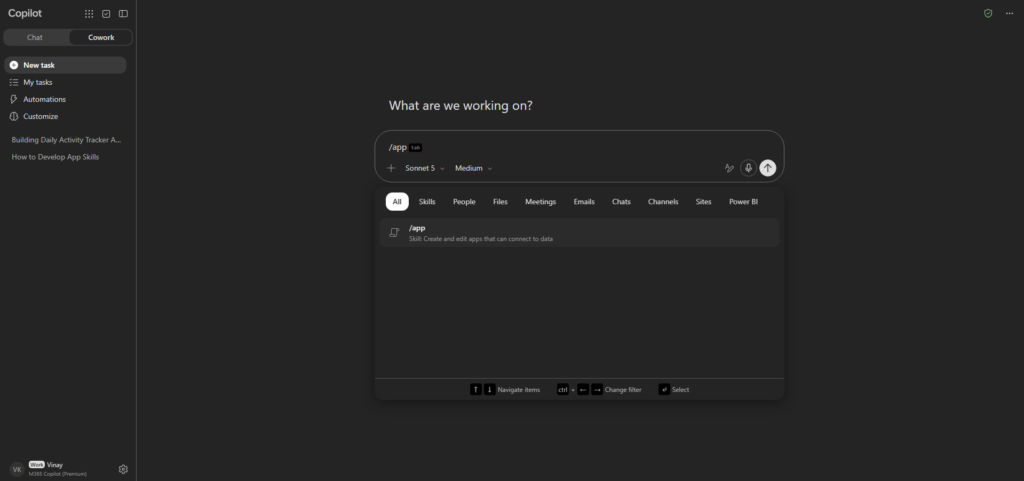
Now create any App of your liking, If you wish to make Daily Activity Tracker App – follow the video tutorial shown below:
Prompt:
/app
Build a simple “Daily Activity Tracker” app.
Purpose: Log daily activities for customers so we can track what is planned and what is done. Keep the app very simple and clean.
Do not add extra features beyond what is listed below.
Data source:
SharePoint list named “Daily Activities” link: [Your SharePoint List Name]
Columns:
– Customer Name (single line of text, required)
– Customer Email (single line of text, required)
– Description (Multi line of text, required)
– Activity Date (date only, required, default today)
– Status (choice: Planned, Done; default Planned)
– Activity Type (Choice – Visit, Call, Demo, Follow-up, Email, required)
Screens and features:
1. Add Activity: a simple form to add a new activity with the fields above. Save it to the SharePoint list.
2. Today’s Activities: the home screen. Show a list of activities where Activity Date is today. Include a filter by Customer Name.
3. Mark as Done: each activity in the list has a “Mark as Done” button that updates Status to Done in SharePoint.
Design:
– HTML/CSS file: Click to download file